Tuesday, March 22, 2011

AutoCAD 2012: GIS/Pipeline People to Breathe a Sigh of Relief with Enhanced Raster File Support

If you have ever worked with heavy raster images in AutoCAD, you know very well how painful the experience is. Especially for those people working with huge aerial / satellite imagery, it is nearly impossible to use TIF image format to represent a large area due to huge image file size. This is why compressed image formats like ECW (Enhanced Compression Wavelet), MrSID (Multiresolution Seamless Image Database) etc. are highly popular among these people.

The compressed images files are comparatively very small in size and are easy to handle inside AutoCAD drawings. These images required additional installation of plug-ins/object enablers prior to AutoCAD release 2012. The good news is that from 2012 onwards, these file formats are natively supported in AutoCAD, thereby requiring no additional installations. Here is a complete list of newly supported raster files.


Monday, March 21, 2011

A Simple Macro for Switching Between Rectangular and Isometric Snaps

Have you had the habit of working on isometric drawings frequently? I do a lot of isometric drawings during my work. While doing these drawings, you may need to switch between rectangular and isometric snaps several times. Here is a simple macro to easily switch between these snap modes.

^C^C_setvar;SNAPSTYL;$M=$(if,$(=,$(getvar,SNAPSTYL),0),1,0)

I found a similar macro commented by Kate Morrical in her own blog LT Unlimited. Here goes Kate's version.

$M=$(if,$(=,$(getvar,SNAPSTYL),1),SNAPSTYL;0;;,SNAPSTYL;1;;)

Thanks Kate, for the handy macro.

Friday, November 26, 2010

Sharing Raster Files? Convert Them to Easily Viewable Formats Using Autodesk Design Review

Here is another reason for you to have Autodesk Design Review installed on your desktop. In a previous post, you saw how to use Autodesk Design Review as your default viewer for raster files. What if somebody else – for example, somebody from top management or a subcontractor - who doesn’t have Autodesk Design Review or any other raster file viewers installed on their system wants to review the raster design files? Don’t worry about installing the viewers everywhere. We can easily convert these files to PDF or TIF files using Autodesk Design Review.

Open Autodesk Design Review application on your desktop. Make sure that the ‘List View’ and ‘Thumbnails’ palettes are switched on in the ‘Show/Hide Palettes’ ribbon menu.

Raster2PDF_01

Raster2PDF_02

Open windows explorer and select raster files you wish to convert (use Ctrl+A for in case want you select all the files in the folder).

Raster2PDF_03

Now drag and drop them inside the ‘List View’ window / Thumbnail window.

Raster2PDF_04
You can drag the files inside the list view to arrange them in the proper order.

Raster2PDF_05

Use the ‘Thumbnail’ tab, if you want to preview while arranging them in order.

Raster2PDF_06

Select all the files in the ‘List View’ or ‘Thumbnails’ palette and right click to choose ‘Print’ option in the popup menu.

Raster2PDF_07

In the print dialog box, select the PDF writer of your choice (I use CutePDF writer which is really nice and free). Your can also use common printers like ‘Microsoft Document Image Writer’ to get a multipage TIF document output. Don’t forget to select ‘Choose paper source by DWF page size’ in the ‘Page Handling' section, if you want to preserve original sheet sizes. The print range will be selected ‘All’ by default. Ignore the print range shown in the image as I selected ‘Current sheet only’ option by mistake while taking the snapshot :-).

Raster2PDF_08

That’s it. Now your uncommon raster file formats are ready to be shared with most of the people around you. Trust me; Autodesk Design Review is worth more than a free design review application. Go and grab it right now from Autodesk site for free of cost!

Monday, October 11, 2010

An Easy Way to Publish Drawings from Different Folders

How do you publish drawings from different folders? Do you navigate to each folder from the publish dialog box for selecting files? That sounds really painful. Don’t worry; a simple drag and drop trick can ease your pain.

I will show you the method to accomplish this with the help of a sample folder structure. The following image shows a sample root folder with 5 different project folders.

Drag_n_Drop_Publish_01

Each folder contains different drawing files. For publishing all the drawings in a single stretch, follow the steps as given below.

  • Click on the root folder (‘Sample’ in this case) and hit the search button on the toolbar.
  • Type *.dwg to list all the drawings under the root folder and subfolders.

Drag_n_Drop_Publish_02

  • Invoke the publish dialog box inside AutoCAD.
  • Press Ctrl+A to select all files or use Ctrl/Shift + Left Mouse Click to select only desired files in the explorer search window.
  • Now drag and drop the selected files to the publish dialog box. That’s it! You are done with selecting multiple files from multiple folders.

Drag_n_Drop_Publish_03

Try that and you will come to know that it is as simple as any other AutoCAD drag & drop operations.

Thursday, July 15, 2010

A Quick Tip on Publishing Drawings into Individual PDF Files

Recently our designers came across a requirement of publishing drawings into individual PDF files. For those who don’t know, here is the main setting you have to remember while publishing PDF files.

  1. Click on ‘Publish Options’ button inside the Publish dialog box.
  2. Inside the Publish Options window, select type as ‘Single-sheet file’ instead of ‘Multi-sheet file’ in the ‘General DWF/PDF options’ as shown in the image below.

Publish_Single

Rest of the publish settings shall be same as publishing multiple PDF files. This tip might be familiar to most of you. Well, I have another tip for you to handle post publish PDF file names using windows command prompt. Using REN command with a combination of wildcard characters, you can easily rename the PDF files to standard names. For example, you would like to rename ‘Drawing_xxx-Model.pdf’ file to ‘Drawing_xxx.pdf’ format where xxx stands for unique characters. Here is the command for the above scenario.

REN *_???-Model.pdf *_???.pdf

CMD_01

As you can see in the above image, the file names have been modified using a single command line. The wildcard combination may vary from case to case. Have a look at windows commands and command prompt if you have not yet experimented with it. It will definitely help you to handle your day-to-day tasks easily and comfortably.

Thursday, July 8, 2010

A Macro for Aligning Text, MText and Block Entities Horizontally and Vertically in AutoCAD LT

It has been a long time since I made my last post here. I was seriously thinking of dropping the blogging activities, mainly due to lack of unique ideas. But when I received an email request from a AutoCAD LT user for a macro for aligning objects like Text entities, I couldn't resist trying it out and sharing it with you people. My sincere apologies to all readers for leaving such a long gap. That said, to be honest, I don’t have any idea when I am going to publish my next tip over here.

Back to our post topic. These macros can be used to align entities like Text, Mtext, Blocks and literally any object that comes with an insertion base point, both horizontally and vertically.That means you can use this macro to align a Text entity with an MText or Block Reference. The only limitation you will come across is that you will have to select the entities one by one as opposed to selecting all together in AutoLISP or VBA programs.

You have already seen the power of combining DIESEL with the CAL command (I call it DIECAL for ease of use). Once again, I am going to use the power of DIECAL to accomplish our task. Here goes the first macro, used for aligning entities vertically.

*^C^C$M=$(if,$(=,$(getvar,useri5),0),osmode;0;_id;\userr3;'cal;rxof(@);\)useri5;0;select;single;\lastpoint;'cal;ins;@;\userr4;'cal;ryof(@);\userr5;'cal;rzof(@);\useri5;1;_move;p;;'cal;@;'cal;xof([getvar(userr3),0,0])+yof([0,getvar(userr4),0])+zof([0,0,getvar(userr5)]);

For you to get an idea how it works, please find the image below consisting of different types of entities.

Vert_Pre_Align

The next picture illustrates what the align vertical macro can do with these entities.

Vert_Post_Align

With a small modification in the macro, you can use it to align these entities horizontally as well. Here is the modified macro for horizontal alignment.

*^C^C$M=$(if,$(=,$(getvar,useri5),0),osmode;0;_id;\userr4;'cal;ryof(@);\)useri5;0;select;single;\lastpoint;'cal;ins;@;\userr3;'cal;rxof(@);\userr5;'cal;rzof(@);\useri5;1;_move;p;;'cal;@;'cal;xof([getvar(userr3),0,0])+yof([0,getvar(userr4),0])+zof([0,0,getvar(userr5)]);

And here is the illustration of the macro functionality.

Before running the macro.
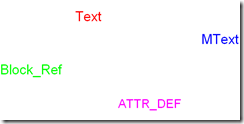
Horz_Pre_Align

After running the macro.

Horz_Post_Align

These macros have been tested in AutCAD LT 2011 and works fine over there. I hope it will work with previous versions also, at least in the recent versions of AutoCAD LT. If you come across any problems, please feel free to post it here.

Many thanks to Adam for inspiring me to develop this :-)

Saturday, September 26, 2009

Extracting 3D DWF Model Properties Using Autodesk Design Review API and AutoCAD VBA

A while ago I came across a situation where I had to extract line lists, valve lists, equipment lists and fittings lists from a DWF file. The DWF file was converted from a PDS model review file (DRI) using NavisWorks. After a few hours research on Autodesk Design Review API, I could extract all the required lists with a few lines of code. Ofcourse, with the help of fast dying AutoCAD VBA.

As the code makes use of CExpressViewerContol, you need to place it inside a form before running the code. You may use any COM compliant development environment in place of AutoCAD VBA. But I would like to stick to AutoCAD VBA till its last breath due to ease of use.

Sub ExtractDwfProps()
'### Extracts properties from model components of a 3D DWF file
'### By zoomharis@gmail.com
'### Date: 09/09/09

'### Based on Autodesk Design Review 2010 API

'### DWF specific references
' -----------------------
'### AdCommon 1.0 Type Library
'### ECompositeViewer 1.0 Type Library
'### ExpressViewerDll 1.0 Type Library

'### DWF specific controls
' ---------------------
'### CExpressViewerContol

On Error Resume Next
Dim oECV As ECompositeViewer.IAdECompositeViewer
Dim oSec As ECompositeViewer.IAdSection
Dim oEnt As AdCommon.IAdObject
Dim oProp As AdCommon.IAdProperty
Dim oCol As AdCommon.CAdCollection
Dim oCont As ECompositeViewer.IAdContent
Dim strDwfLoc As String
Dim strPropName As String
Dim strPropValue As String
'## Let me use a sample 3D dwf file
strDwfLoc = "C:\Dwf\3DModel.dwf"
strPropName = ""
strPropValue = ""
'## Open the dwf file in the viewer
CExpressViewerContol1.SourcePath = strDwfLoc
Set oECV = CExpressViewerContol1.ECompositeViewer
'## Iterate through the dwf model
For Each oSec In oECV.Sections
Set oCont = oSec.Content
Set oCol = oCont.Objects(0)
For Each oEnt In oCol
For Each oProp In oEnt.Properties
strPropName = oProp.Name
strPropValue = oProp.value
Next
'## Write code here to apply conditions to filter the list
'## and send the extracted info into a text or excel file.
'## Then clear the property name and property value strings
strPropName = ""
strPropValue = ""
Next
Next
Set oProp = Nothing
Set oEnt = Nothing
Set oCol = Nothing
Set oCont = Nothing
Set oSec = Nothing
Set oECV = Nothing
End Sub

I have stripped down some of the code portion as it was specific my purpose. This is mostly in a general form and you may need to add/modify wherever necessary in order to run it in your system.

Saturday, September 12, 2009

Creating Complex Selection Sets Using FILTER Command

It always make me wonder why the FILTER command is often overlooked by most of the AutoCAD users of current era, especially the newbies. It may be partially due to the fact that this command can get highly complicated at times depending upon the requirement. Ofcourse, it can be. But the power is always accompanied by complexity. Some of the advantages of this most powerful selection tool are;
  • Creating selection sets based upon multiple criteria
  • Creating logical groups without physically grouping it
  • Flexibility to use transparently in between the commands

To make it simple (sorry, if you find it otherwise ;-), let us go by a sample. I have a Piping & Instrumentation diagram in which I need to create a selection set of major and minor process lines along with the line numbers. The newbie designer has drawn some of the lines as LINE entity and rest of them as POLYLINE entity. All the major lines are placed inside 'MAJOR' layer and the minor ones in 'MINOR' layer. The line number is placed inside an attributed block reference named 'LINENO' which resides in 'LINE_NUM' layer. The image below illustrates the filter criteria for creating the above selection set.


This is a nested filter criteria that makes it little difficult to understand. Nothing to worry. Let us split it into smaller portions so that we can analyse it easily.Following is the description of each portion in the order as shown in the image.


  1. Object= 'LINE' OR 'POLYLINE'
  2. Layer = 'MAJOR' OR 'MINOR'
  3. Block_Name = 'LINENO' AND Layer = 'LINE_NUM'
  4. Result of Step-1 AND Step-2
  5. Result of Step-3 AND Step-4.

If you represent the whole thing as a logical expression, it would look like the following statement;

((( Object= 'LINE' OR 'POLYLINE') AND (Layer = 'MAJOR' OR 'MINOR')) OR (Block_Name ='LINENO' AND Layer = 'LINE_NUM'))

If you have a closer look at the filter, you will find that the innermost criteria gets resolved first and passes its result to the outer ones in nested filters. In the above case, the criteria to be executed at the final stage is the outermost one (Step-5).

This way, you can save very complex filters in your drawing for quick access at any stage of drawing development or review.

Friday, August 28, 2009

Quick Tip - Start an MText List with a Number or Alphabet of Your Choice

Last week I came across one of our designers using this nice trick and thought I would share it with you people. If you want to start a list inside MText window with a number or alphabet of your choice, try the following steps.
  1. Type the number or alphabet followed by a period (dot) symbol.
  2. Press the tab button after the period symbol
  3. Type the content of the first line (optional) and press enter key.

That's it. Now you will find the list starting with the number or alphabet you typed over there. Shown below is a sample list created using the above steps.

In addition to that, a little research on the subject helped me to prefix the list numbers with a custom text, as shown in the image below.


Wednesday, August 12, 2009

Quick Tip - Generating a Drawing List from Different Folders Using Windows Command Prompt

Most you might already know that typing DIR *.dwg /B > ListFileName in the windows command prompt will provide you with a quick list of drawings in the specific location. What if you want to create a list with drawings from multiple folders? It's a really simple task. See the following sample to get to know the syntax.

DIR D:\Proj_Dir\Disc-1\*.dwg D:\Proj_Dir\Disc-2\*.dwg D:\Proj_Dir\Disc-3\*.dwg /B > D:\Proj_Dir\Dwg_List.txt

As you can see, the paths are seperated by a space. Remember that the /B switch is still required to get the bare format file names. The above command will list all the drawing file names in the folders Disc-1, Disc-2 and Disc-3 to the Dwg_List.txt file. To access windows command prompt, either type CMD in the run prompt or locate it via Start--> All Programs --> Accessories --> Command Prompt.

Tuesday, July 14, 2009

How to Use DWG TrueView to Optimize Your Drawing Files

Yet another reason to add DWG TrueView to your arsenal. DWG TrueView can be used as an excellent tool to optimize drawing files in batch. With facilities like purging, auditing, xref binding etc. TrueView has become truly irresistible for the CAD managers/administrators/users . Following are the steps involved in the process.

1. Start DWG TrueView and open 'DWG Convert' from the menu. It will launch the 'DWG Convert' dialog box.


2. Click on the 'Conversion Setups' button to open 'Conversion Setups' dialog box. Our idea is to create an exclusive setup for our optimization process.


3. Click on 'New' button to launch 'New Conversion Setup' dialog box and provide a meaningful name over there.


4. Clicking on 'Continue' button will pop up the 'Modify Conversion Setup' dialog box. Here I am going to use the basic settings. You may choose the options as per your requirement. Since our aim is to optimize the drawings (drawing format conversion is not our primary objective), I prefer to use 'In-place (overwrite files)' as my conversion package type. Choose the drawing file format based upon your company/client CAD standards (We normally use AutoCAD 2007 format as we are still on AutoCAD 2008). In the actions area, select 'Check and fix errors' and 'Purge drawings' check boxes as a minimum. Don't forget to provide a conversion setup description at the bottom in order to easily make out the setup objective later on.


5. Click 'Ok' to finalise the setup. You can see the new setup name listed in the 'Conversion Setups' list box.


6. Close the dialog box to go back to the 'DWG Convert' dialog box. Add the drawing files to be optimized using the 'Add file' button in the bottom side. Once the drawings have been added, make sure that the recently created conversion setup is selected in the list. That's it. Just click on convert button and the TrueView application will do the rest for you.


Once the setup is made, you can use the same setup every time you need to optimize the drawings. Really cool, isn't it? The entire process consumes only a little time and resources. In case you haven't installed AutoCAD 2010 yet, TrueView is a must for you as it can bring 2010 format files down to your AutoCAD version compatible format. What else you need to get it installed on your system? DWG TrueView and Autodesk Design Review are FREE and can be downloaded from the Autodesk site.

Tuesday, July 7, 2009

DATAEXTRACTION Means A Lot More Than Simple Attribute Extraction

How often do you use DATAEXTRACTION wizard for extracting some information other than block attribute data? I have often seen people leaving it behind for tasks like extracting specific text information mentioning that this tool is not powerful enough to get an accurate output. That's not true. Here I am going to show you how to extract a line list from a bunch of Piping & Instrumentation Diagrams (P&ID). The P&IDs contains a lot of other text objects. But with the help of some filtering options, you can extract only the required text information from the drawing.

1. Start DATAEXTRACTION wizard

2. Select the required P&ID drawings (Here I am using sample ones).

3. In the third page select only 'Text' as object type.(Tip: You can uncheck all entries simultaneously by using right click).

4. In the fourth page, select 'Drawing' and 'Text' in the category filter. Also select 'File Name' and 'Value' in the properties area.

5. In the refine data page, you will get a screen similar to the one shown below. This is the area where we are going to play our game. You will notice that the value field contains various text object values from different drawings. We need to confine the list to line numbers.

6. Now right click on the value column and select 'Filter Options' from the right click menu.

7. You will be provided with a filter dialog box as shown in the image below. For our purpose, select the 'Contains' list item from the first list box and type in a wildcard criteria *"-* in the second list box as shown in the picture.

8. Click 'Ok' to apply the filter. Now you can see the value column filtered to show only line numbers based upon the given criteria.

9. Click on 'Next' button and save the output as an excel file or table.


You can easily create various lists from your drawings irrespective of the data containers. Whether it be attribute or text, DATAEXTRACTION is powerful enough to pull the required data based upon different conditions. As the wildcard criteria plays a critical role in extracting the specific data, you need to be very careful to choose the right criteria in order to get proper results.

On a side note, I feel like the command name is a bit too long. It would be a lot better if it were something like DATAXTRACT or even shorter. Anyway, that's not a matter of a concern as we don't use this command very frequently.

Thursday, May 21, 2009

Some Interesting Single Key Shortcuts in Autodesk Design Review

For the keyboard fans, who don't like working with menus and ribbons, there are several easy to use keyboard shortcuts inside ADR to make your life a lot easier. Some of those deserve a special mention for the fact that they are single key shortcuts. Using these shortcuts, the navigation options seem to be as easy as in AutoCAD, or even better. Here goes some of the single key shortcuts those caught my eyes at first sight.

R - Zoom Rectangle
F - Fit to Window
Q - Dynamic Zoom
H - Pan
PgUp - Next Page
PgDn - Previous Page
G - Length (Dimension)
N - Full Screen (Toggle)

I personally found the 'R' and 'F' shortcuts combination so terrific that it could easily beat the speed of Z+W and Z+E combination in AutoCAD. For a full list of ADR shortcuts, please refer to the help section inside the application. Unfortunately, I could not find any equivalent shortcut keys for DWG TrueView. If it's not available in TrueView, Autodesk should seriously consider incorporating it, atleast for the navigation options. For sure, these applications are going to be more and more popular in the future.

Wednesday, April 15, 2009

How To Use Autodesk Design Review As Your Default Raster Image Viewer

Have you had a lot of headache in the past for viewing raster files those are not supported by windows built in image viewer applications? Don't worry, the solution is right under your nose. Apart from serving as an excellent review application, Autodesk Design Review can also be used as a raster image viewer. That means, you don't have to attach the raster images inside AutoCAD to view the contents. Instead, you can directly double click it on the explorer so that it opens directly in the Design Review application. Please make sure that you have done the following steps.

1. Goto Control Panel and double click on 'Folder Options'.
2. Goto the 'File Types' tab.
3. Locate the raster file extension inside the 'registered file types' list
4. If the extension does not exist, then click on 'New' to create a new one.

5. Select the extension from the list and click on 'Change' button shown in the details section.

6. From the next popup window, choose 'Select the program from a list' option.

7. Choose Autodesk DWF Application as the preferred application to open files with this extension. Also remember to check the 'Always use the selected program to open this kind of file' check box shown right under the list.

8. If everything is done properly, it will look as shown in the image below.


That's it. Repeat the same steps for other types of raster files. Once done, you don't have worry about it any more. Now you can goto explorer and double click those files to open it directly inside the Design Review application. I have configured mine to view file types like CAL, CALS, GP4, CG4, MIL, RST, PCT, PICT, TGA, RLS etc. (testing pending for some types). The best part of the story is that you can easily save this image as a DWF(x) file in order to send it to somebody for review purpose.

Autodesk Design Review is a wonderful review application with exciting features like '2D content comparison', 'PDF Support' etc. It's free and can be downloaded from the Autdesk Design Review site.

Sunday, January 25, 2009

Assigning Multiple Double Click Actions to Single Entity Type in AutoCAD

In the Unleash the Double Click Power post, you saw how to customize the double click action of an entity type to implement custom double click actions. Now we are going to see how we can implement different double click actions simultaneously on single entity type. Normally, we accomplish this by using Reactors or Events in the respective languages. But, we are not going to use any of these in our method. Rather, we will follow a tricky way to achieve the same result.

As an example, I will show you how to change the double click action of an 'Attribute Block'. Normally double clicking an attribute block shows the Enhanced Attribute Editor Dialog. We are going to change this to show either Enhanced Attribute Editor(_eattedit) or Edit Attributes dialog (_attedit) depending on certain condition. Let's say, when we double click on a title block named TITLE_BLOCK, it should display the Enhanced Attribute Editor dialog and for all other blocks in the drawing, it should display Edit Attributes dialog. The step by step configuration is given below.


  1. Open CUI and create a custom command with the following code inside the macro section of the command. If you don't know how to create a custom command, then refer to the 'Unleash the Double Click Power' post mentioned above. Replace the 'TITLE_BLOCK' inside the following code with your actual title block name.
    ^C^C(if (= (cdr (assoc 2 (entget (ssname (ssget "P") 0)))) "TITLE_BLOCK") (command "_eattedit")(command "_ddatte" ))

  2. Drag and drop the custom command under the 'Attribute Block' section inside the Double Click Actions.

  3. Click on 'Apply' and close the CUI dialog.


That's it. Now if you double click on the title block, it will open the Enhanced Attribute Editor dialog and for all other attributed blocks, it will open Edit Attributes dialog. By the way, don't forget to take a backup of the default CUI files before you start experimenting with them.

Sunday, January 18, 2009

Quick Tip - A Shortcut for Closing Active Drawing

You already know that ALT+F4 can effectively be used to quit a running application in windows operating system. For those who don't know, pressing CTRL+F4 inside AutoCAD will close the active drawing without touching the application or other drawings already open over there. Though it's a more straight forward shortcut than the ALT+F+C, I would like to stick to the latter as it looks easier to me (May be because I am used to that). CTRL+F4 shortcut is not limited to AutoCAD, but it works well with almost all windows multi document interface (MDI) applications.

Sunday, January 4, 2009

My New Year Wish - An Intermediate AutoCAD Product for 2D Designing & Draughting

Why? Let's have a look at the existing product line. ie, Vanilla AutoCAD and AutoCAD LT. You might be able to find an answer from there.

AutoCAD LT: The lack of strong application programming interfaces makes AutoCAD LT really handicapped in the perspective of a Power User or CAD Administrator. You can not use any of your custom commands developed using AutoLISP/VBA/Dotnet/ObjectARX inside LT. The remaining option called DIESEL is only good enough to make small macros. Not only that; the number of commands are limited as compared to the full version.

Vanilla AutoCAD: Very powerful platform for 2D as well as 3D designing and modeling. The disadvantage is that it's loaded with comprehensive 3D modeling and rendering engines which are not at all used by the 2D user. Believe me; I have never used any of the 3D modeling or rendering features for the past 4 or 5 years for official purpose. That means the 2D users are carrying a burden over their shoulders and have been quite unnecessarily paying for the unwanted features. They could work much faster, if all those unwanted features were not loaded over there. The recent versions of AutoCAD show that it is more inclined towards 3D development than the 2D ones.

The need of the moment is an intermediate AutoCAD Product, which offers the power of Vanilla AutoCAD customization and 2D features minus all the 3D/rendering features with an attractive price tag. In that case, managers don't have to think twice at the time of purchase/upgrade of the product as they normally would do. As of now, we are forced to use Vanilla AutoCAD as we have in-house discipline specific menus and associated programs.

I am sorry to have started the New Year in a rebellion mood. But we really wish to see such a product available in the industry. Please note that the above views and opinions are my personal ones and those don't reflect the views or policies of the company I am working for. I take this opportunity to wish you a happy and prosperous new year. May the New Year make our dreams (including the CAD related ones ;-) come true...!! Many thanks to all you people for visiting my blog.

Wednesday, November 19, 2008

Developing a Sine Wave Generator using DIECAL

In the last post, we saw how easiy we could accomplish complicated operations using DIECAL. Further to that, we are going develop a sine wave generator using a few lines of code. I know that you don't have a sine wave generator even in your wildest DIESEL dreams. But it is a really simple task using DIECAL. Once again, I am going to use points in order to make it simple. For generating sine wave, use the following macro.

*^C^C_setvar;userr1;$M=$(+,$(getvar,userr1),$(getvar,userr2))$(if,$(>=,$(*,$(+,$(getvar,userr1),$(getvar,userr2)),10),$(*,$(getvar,userr3),360)),^C)_Point;'CAL;[$(getvar,userr4)+$(+,$(getvar,userr1),$(getvar,userr2))/18,sin(10*$(+,$(getvar,userr1),$(getvar,userr2)))];

The above macro makes use of USERR1 to USERR4 system variables. The USERR1 and USERR2 values are automatically set by the set/reset macro (given below). USERR3 holds the value for number of cycles created and USERR4 is for X axis lag value (See the sample image). Use the following macro to set/reset initial values. When you run this macro, just follow the status bar messages.

^C^C_setvar;userr1;-1;;userr2;1;userr3;1;_modemacro;Enter number of cycles:;userr3;\userr4;0;_modemacro;Enter lag value for X axis:;setvar;userr4;\_modemacro;.;

The following image illustrates three sine waves gererated with a cycle value of 3 and X axis lag value 0 (Red) .22 (Green) and .44(Yellow).


Thursday, November 13, 2008

DIECAL - It's DIESEL Enhanced with a Mathematical Engine

In the last post I mentioned that I could come up with some better posts after the vacation, with the help of a refreshed mind. Hope this post justifies my words.

The absence of a strong mathematical engine inside DIESEL has troubled most of us in the past. We are going to overcome this limitation by mixing up DIESEL with the command line calculater. It should work in AutoCAD LT as command line calculator has been included in LT2009.If you compare, DIECAL capabilities are far better than DIESEL. Using DIECAL, you can do vector calculations, access various numeric functions which are not available in DIESEL and can do so many other things. If you are not convinced, here is a sample macro to draw a sphere by placing points across the surface of a sphere.

*^C^Csetvar;userr1;$M=$(+,$(getvar,userr1),$(getvar,userr4));$(if,$(>=,$(getvar,userr1),360),setvar;userr2;$
(+,$(getvar,userr2),$(getvar,userr5));setvar;userr1;0;)_Point;'CAL;[$(getvar,userr3)
<$(+,$(getvar,userr1),$(getvar,userr4))<$(getvar,userr2)];$(if,$(>,$(getvar,userr2),270),^c)


This macro uses USERR1 to USERR5 system variables to store values. The USERR1 and USERR2 system variable values are handled by the above macro. The USERR3 system variable stores the radius of the sphere, USERR4 holds the angle between the horizontal points and USERR5 holds the angle between vertical points. These values can be set/reset using the following macro. When you run this macro, just follow the instructions shown in the status bar.

^C^C_setvar;userr1;0;;userr2;90;_modemacro;Enter sphere radius:;userr3;\_modemacro;Enter angle between horizontal points:;userr4;\_modemacro;Enter angle between vertical points:;userr5;\_modemacro;.;

Please remember to run this macro to set/reset values before using the main macro.The first macro makes use of the Spherical Coordinate System point format entry to place points across the surface of the sphere.Please note that the CAL command has to be invoked transparently ('CAL) in the macro in order to output the result of calculation to the active command. It's my lack of knowledge in mathematics that prevents me from showing off a powerful application to exihibit the true potential of DIECAL. Those who know trigonometry and vector algebra will really enjoy this method. Following are some sample spheres made using different radius and angle values.


Point Sphere - 3D View


Point Sphere - Top View

Due to the presence of 3D elements, I am not quite sure whether the LT people can use the above macro. But they can surely develop a lot of advanced macros using DIECAL. To get an idea of things that can be done using DIECAL, refer to command line calculator section in AutoCAD help. Now even AutoCAD LT seems to be really unlimited. Doesn't it?

Thursday, October 16, 2008

A Shortcut for Jumping over Words in AutoCAD

This method works fine almost everywhere in windows; be it a word processor, text editor or a dialog prompt. But I thought it would be really interesting to the AutoCAD people who normally deal with a lot of text in day to day life.

You can use CTRL + Right Arrow key to move to the next word or CTRL + Left Arrow key to move to the previous word while you are editing text inside AutoCAD. It successfully worked wherever I tried including Edit Text dialog box, Edit Attributes dialog box, MText Editor and Enhanced Attribute Editor. You can also use CTRL + Up/Down arrows to move to the beginning and end of a MText paragraph.

Thanks to Digital Inspiration for the tip. By the way, I am going back home on vacation for the next three weeks and might not be spending time in front of the computers during the period. Hope to post some good stuff after the trip with the help of a 'refreshed mind' ;-)