Showing posts with label Raster Image. Show all posts

Tuesday, March 22, 2011

AutoCAD 2012: GIS/Pipeline People to Breathe a Sigh of Relief with Enhanced Raster File Support

If you have ever worked with heavy raster images in AutoCAD, you know very well how painful the experience is. Especially for those people working with huge aerial / satellite imagery, it is nearly impossible to use TIF image format to represent a large area due to huge image file size. This is why compressed image formats like ECW (Enhanced Compression Wavelet), MrSID (Multiresolution Seamless Image Database) etc. are highly popular among these people.

The compressed images files are comparatively very small in size and are easy to handle inside AutoCAD drawings. These images required additional installation of plug-ins/object enablers prior to AutoCAD release 2012. The good news is that from 2012 onwards, these file formats are natively supported in AutoCAD, thereby requiring no additional installations. Here is a complete list of newly supported raster files.


Friday, November 26, 2010

Sharing Raster Files? Convert Them to Easily Viewable Formats Using Autodesk Design Review

Here is another reason for you to have Autodesk Design Review installed on your desktop. In a previous post, you saw how to use Autodesk Design Review as your default viewer for raster files. What if somebody else – for example, somebody from top management or a subcontractor - who doesn’t have Autodesk Design Review or any other raster file viewers installed on their system wants to review the raster design files? Don’t worry about installing the viewers everywhere. We can easily convert these files to PDF or TIF files using Autodesk Design Review.

Open Autodesk Design Review application on your desktop. Make sure that the ‘List View’ and ‘Thumbnails’ palettes are switched on in the ‘Show/Hide Palettes’ ribbon menu.

Raster2PDF_01

Raster2PDF_02

Open windows explorer and select raster files you wish to convert (use Ctrl+A for in case want you select all the files in the folder).

Raster2PDF_03

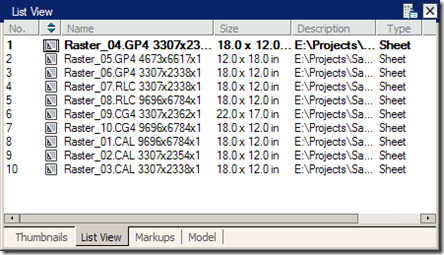
Now drag and drop them inside the ‘List View’ window / Thumbnail window.
Raster2PDF_04
You can drag the files inside the list view to arrange them in the proper order.

Raster2PDF_05

Use the ‘Thumbnail’ tab, if you want to preview while arranging them in order.

Raster2PDF_06

Select all the files in the ‘List View’ or ‘Thumbnails’ palette and right click to choose ‘Print’ option in the popup menu.

Raster2PDF_07

In the print dialog box, select the PDF writer of your choice (I use CutePDF writer which is really nice and free). Your can also use common printers like ‘Microsoft Document Image Writer’ to get a multipage TIF document output. Don’t forget to select ‘Choose paper source by DWF page size’ in the ‘Page Handling' section, if you want to preserve original sheet sizes. The print range will be selected ‘All’ by default. Ignore the print range shown in the image as I selected ‘Current sheet only’ option by mistake while taking the snapshot :-).

Raster2PDF_08

That’s it. Now your uncommon raster file formats are ready to be shared with most of the people around you. Trust me; Autodesk Design Review is worth more than a free design review application. Go and grab it right now from Autodesk site for free of cost!

Tuesday, August 5, 2008

Quick Tip - A better way to handle heavy raster images

Isn't it really painful to work with huge raster images? Those who have worked previously know how irritating it can be. But you can reduce the pain to a certain extent by using some of the availabe options. Switching off the image preview is one of them.


As you can see, it takes time to generate the thumbnail preview of the image. The bigger the image size, the longer it takes to generate the preview. You can switch off the preview by clicking on the 'Hide Preview' button on top right corner of the dialog box. Once you have switched it off, the button caption will change to 'Show Preview'. When you finish processing the big files, you can turn the preview on by clicking on it.


I often work with large tiff images and this feature saves a lot of time for me.